Free All-in-One Office Suite with PDF Editor

Edit Word, Excel, and PPT for FREE.
Read, edit, and convert PDFs with the powerful PDF toolkit.
Microsoft-like interface, easy to use.
Windows • MacOS • Linux • iOS • Android

Catalog
How to Compress Images with WPS Office
When creating reports, presentations, or academic papers, inserting high-resolution images often leads to large file sizes. This makes documents difficult to share via email or consumes excessive storage space. Manually using external image compressor tools is an extra step that disrupts your workflow. WPS Office integrates a compression feature to solve this directly within the document editor.
Step 1: Select an Image and Open compress tool
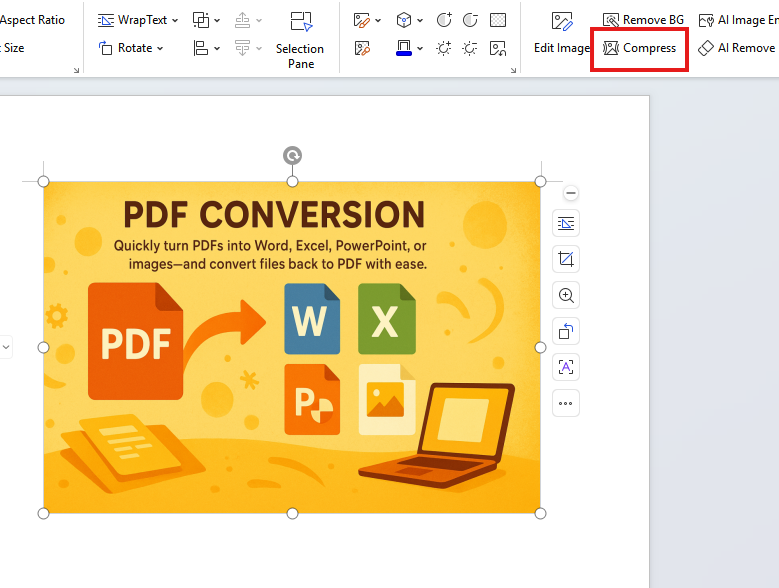
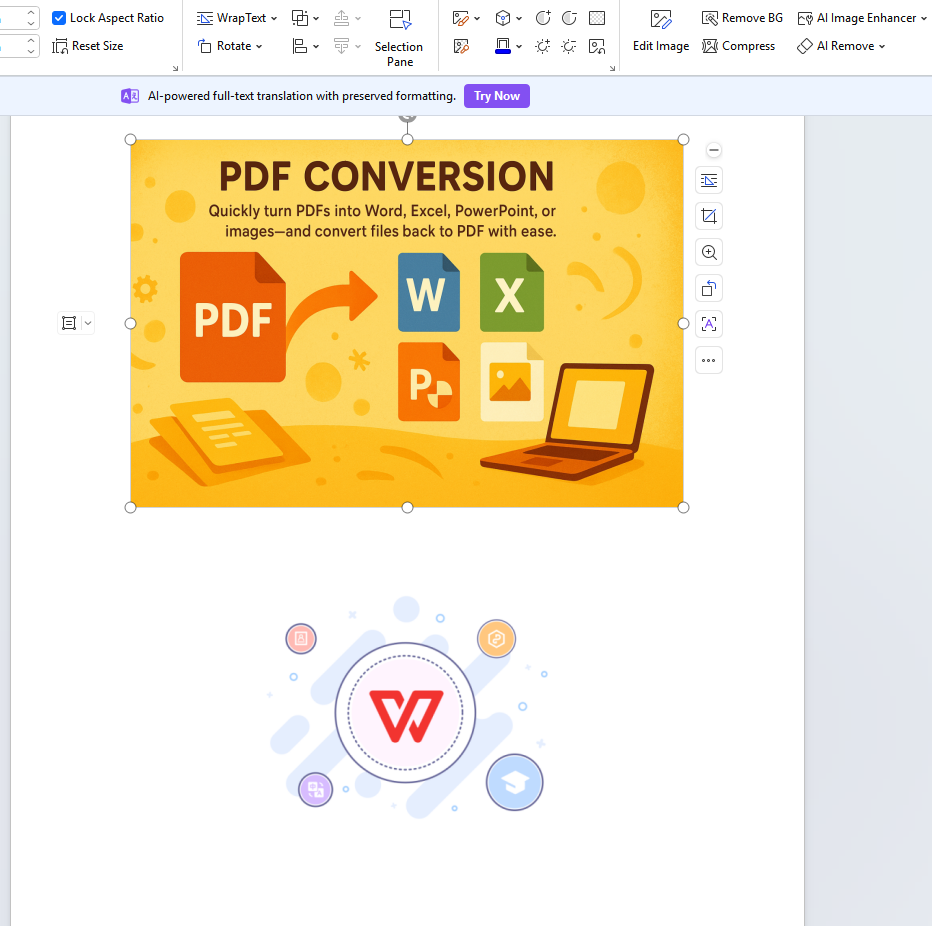
Select the image you wish to compress in your WPS document.
Select the image you wish to compress in your WPS document. Click the image. After clicking, the compress toolbar will appear on the image. Click the toolbar to compress the image.
Step 2: Configure Compression Method
The core of the tool lies in selecting the appropriate compression method. WPS offers two distinct quality tiers for different use cases:
High-Quality Compression: Choose this method when you need to compress an image to a specific target file size while maintaining controlled visual quality, such as for submissions with strict size limits. There are two compression methods available for high-quality compression.
-
Balanced: This option intelligently finds the optimal balance. For example, clicking 'Balanced' can compress an original 2.45MB image down to 256.09KB, achieving a reduction of 89.8%, while preserving detail.
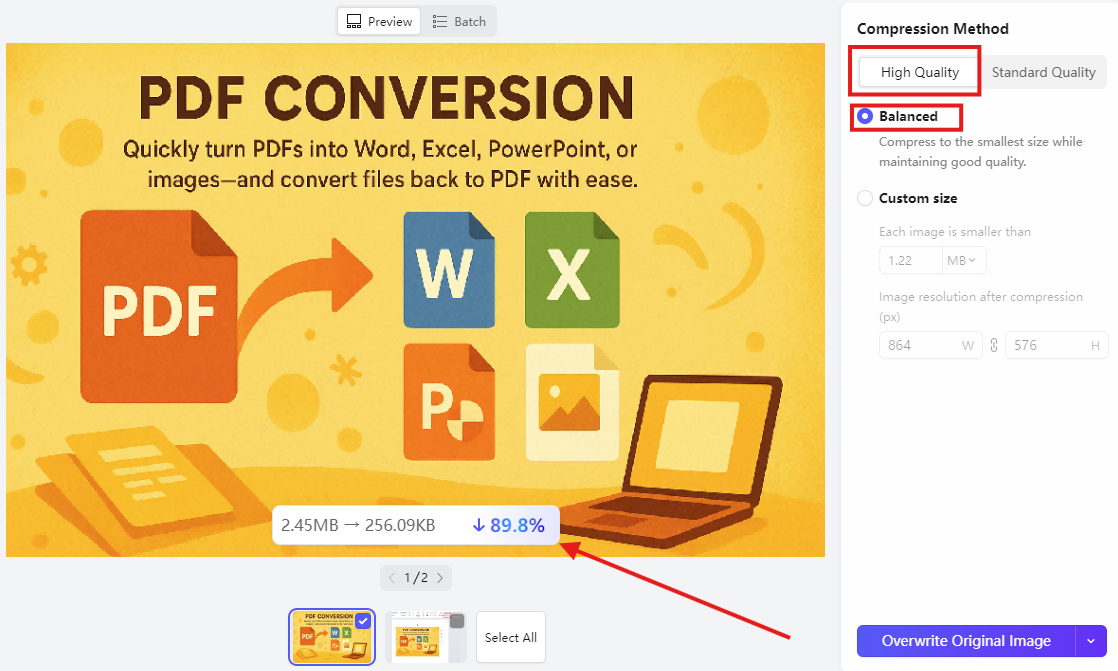
Balanced compression -
Custom size: This option provides manual control. You specify a maximum target file size (in KB or MB), and the system compresses the image to be less than your entered value. For example, if you input “1 MB” to keep a photo under that limit, the system might automatically compress it to 672.08KB. It will then calculate and display the resulting resolution. The current file size is shown below the preview, and a vertical slider in the image preview allows you to drag and compare the visual quality before and after compression.
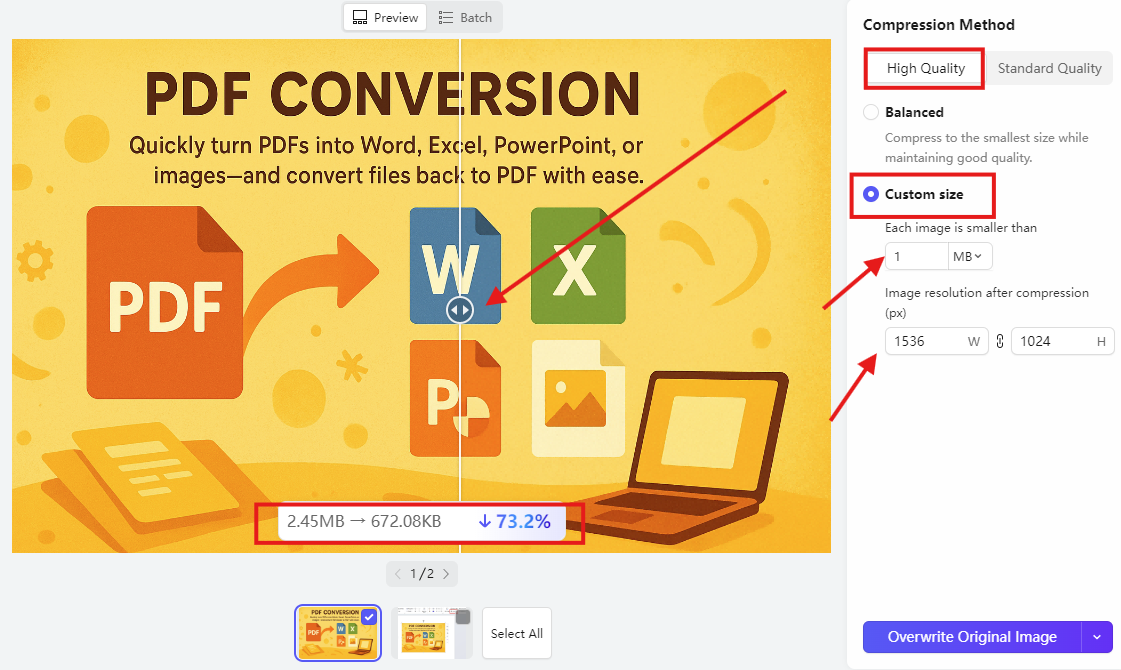
Custom size compression
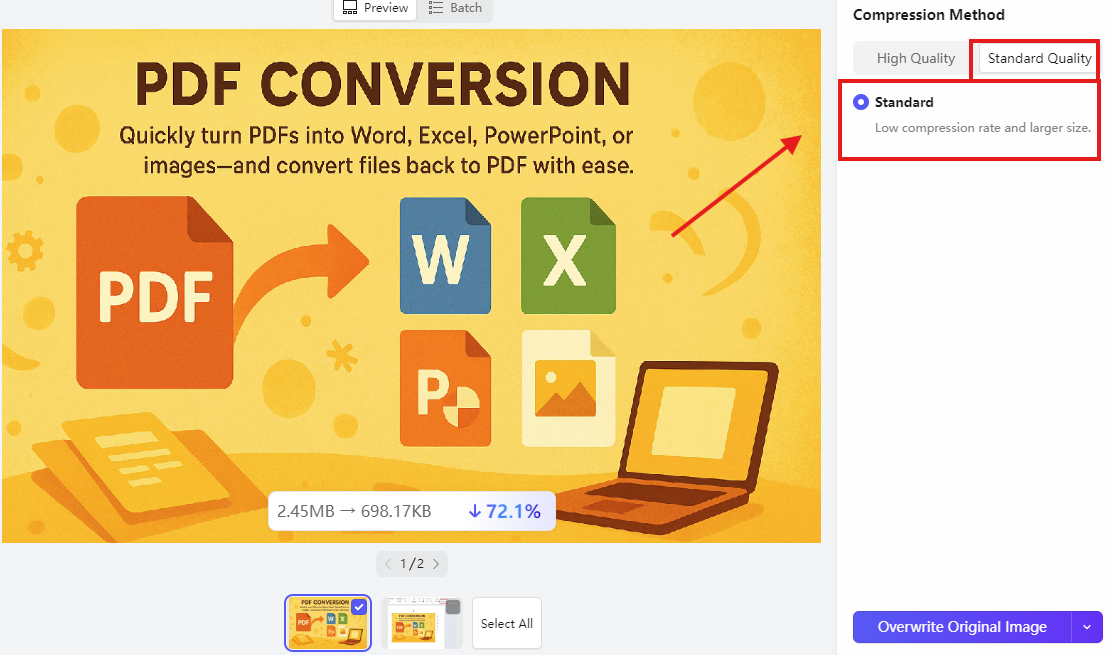
Standard Compression: Select this for a moderate, automatic reduction in file size when preserving maximum image quality is the priority and precise size control is not required.
Step 3: Utilize Batch Processing
To process multiple images efficiently: Ensure all images you need are placed within your WPS document.
Initiate from Any Image: After opening the compression panel for any single image (as in Step 1)
Select Images in Batch Mode: check the boxes below the image previews to select all the images you wish to compress.
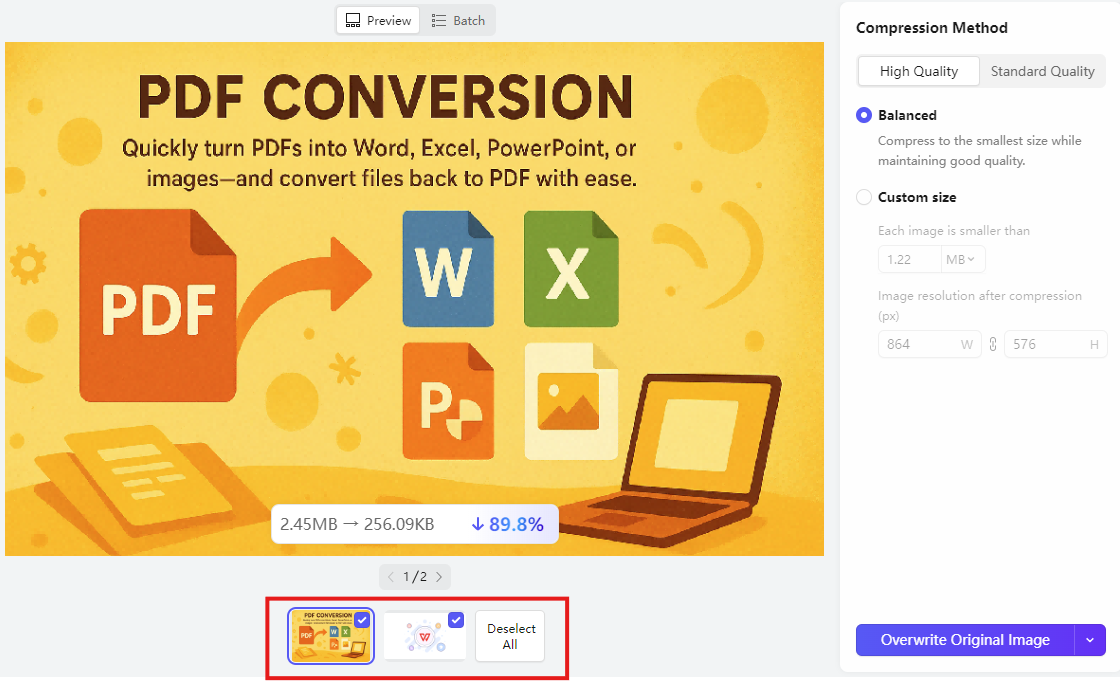
3.Apply Uniform Settings: Configure the compression settings (High-Quality or Standard) for any one of the selected images. The system will then automatically and uniformly apply the same logic to all other selected images in the batch.
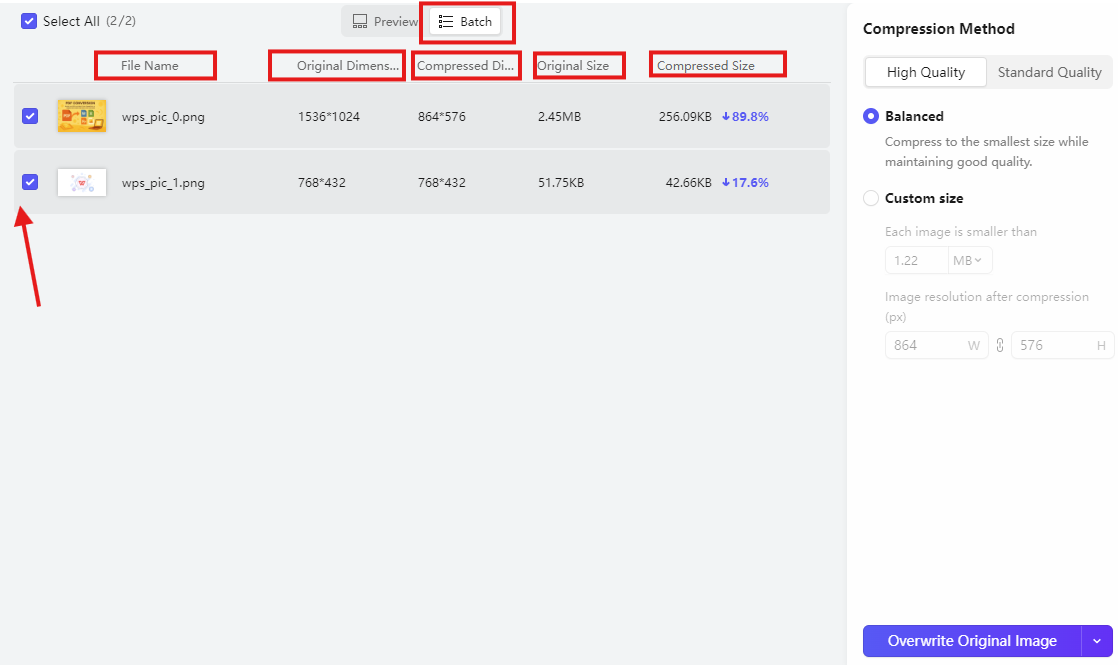
4.Review and Execute: The interface provides a summary list showing each image's name, original dimensions, compressed dimensions, original file size, and compressed file size.
Step 4: Save Changes
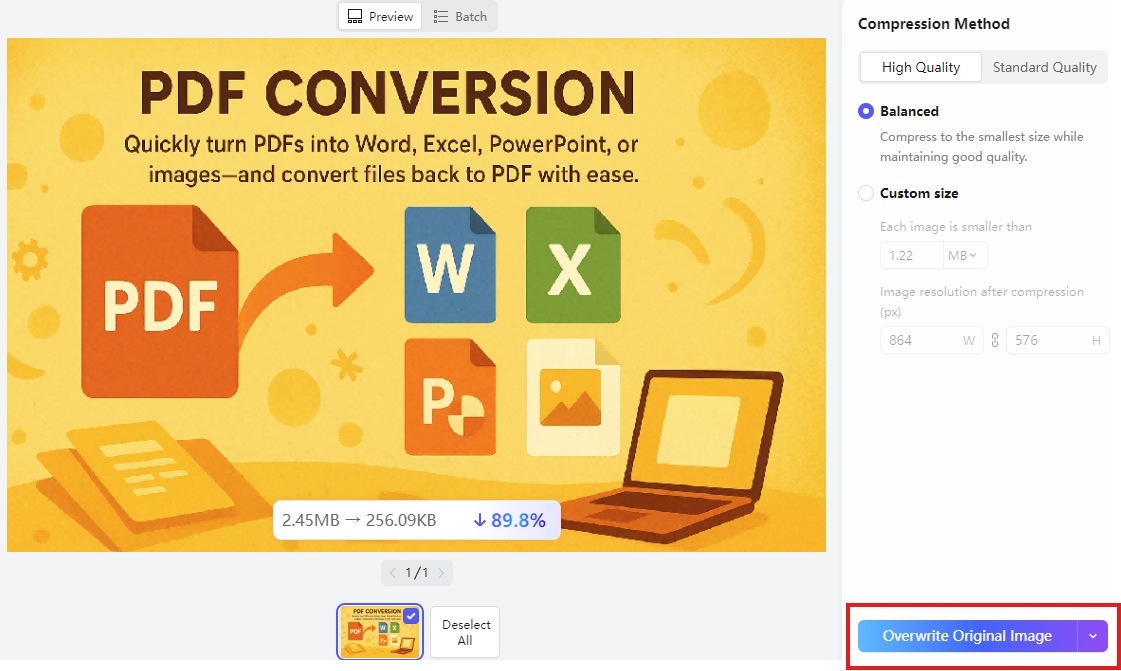
Click the "Overwrite Original Image" button at the Bottom of the panel to apply the colorization and update the image in your document.
Why WPS Office:
The integrated image compressor in WPS Office provides multiple compression options—from smart optimization to custom size control—and supports batch processing, allowing you to optimize document size seamlessly without switching between external tools. This maintains a streamlined and efficient workflow entirely within a single, powerful office suite.



15 years of office industry experience, tech lover and copywriter. Follow me for product reviews, comparisons, and recommendations for new apps and software.


