Free Al Office Suite with PDF Editor

Edit Word, Excel, and PPT for FREE.
Read, edit, and convert PDFs with the powerful PDF toolkit.
Microsoft-like interface, easy to use.
Windows • MacOS • Linux • iOS • Android

Catalog
How to Perform Image Cutout Using WPS
Office users and students frequently need to isolate subjects from photos for resumes, marketing materials, or school projects. Free online tools often produce rough edges or require uploading sensitive files, while desktop photo editors have steep learning curves, making quick, professional results difficult to achieve.
Step 1: Open Your Image with WPS Photos
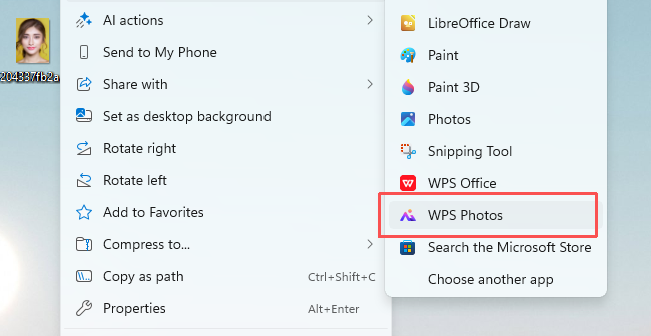
Right-click your target image, hover over "Open with", and select WPS Photos from the app list.
Step 2: Access Smart Background Removal
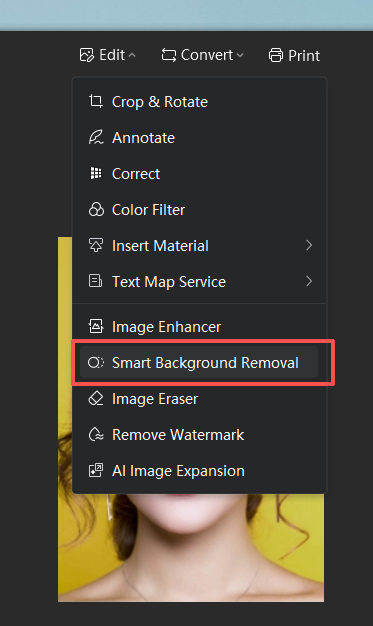
Click the Edit dropdown in the top menu, then select Smart Background Removal.
Step 3: Auto-Remove the Background
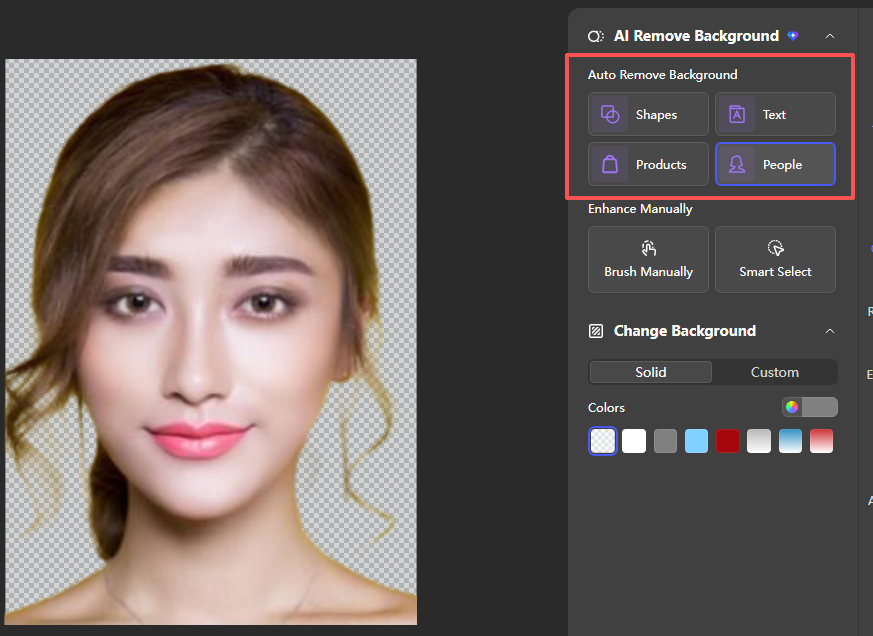
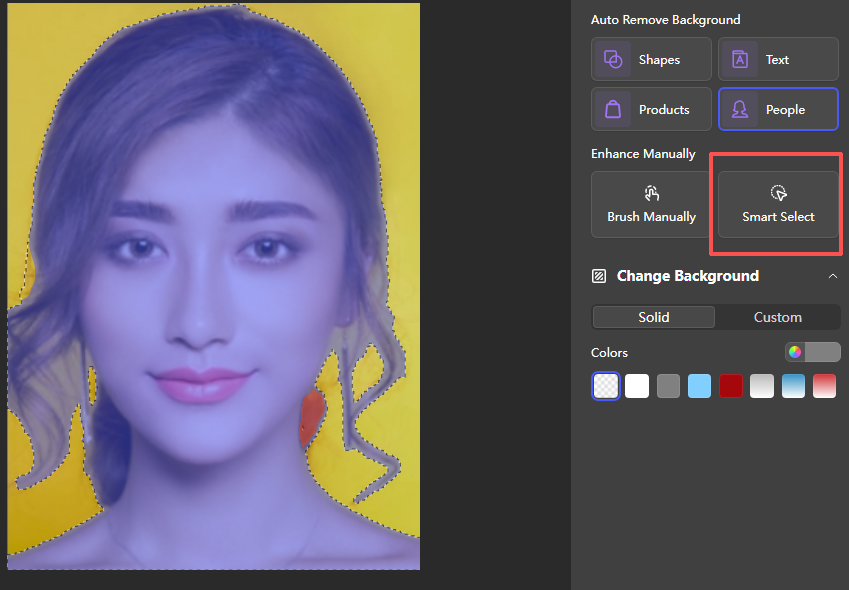
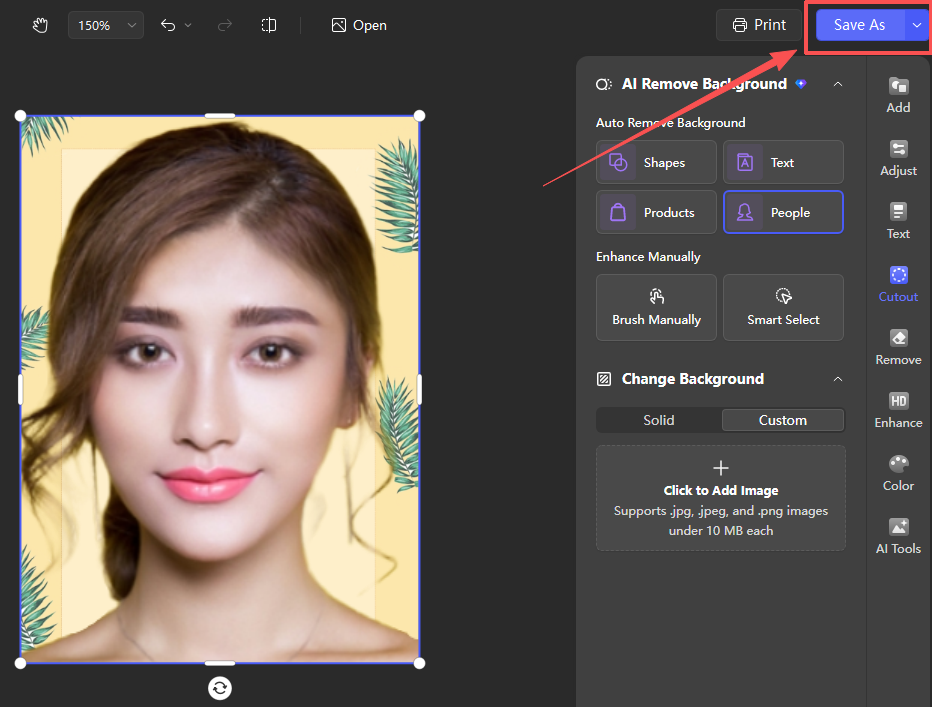
In the right-side panel, under "Auto Remove Background", select the People preset to automatically detect and cut out the portrait subject.
Step 4: Refine the Cutout Manually
Use Brush Manually to switch between "Erase" and "Paint" modes, adjusting brush size to refine edges.
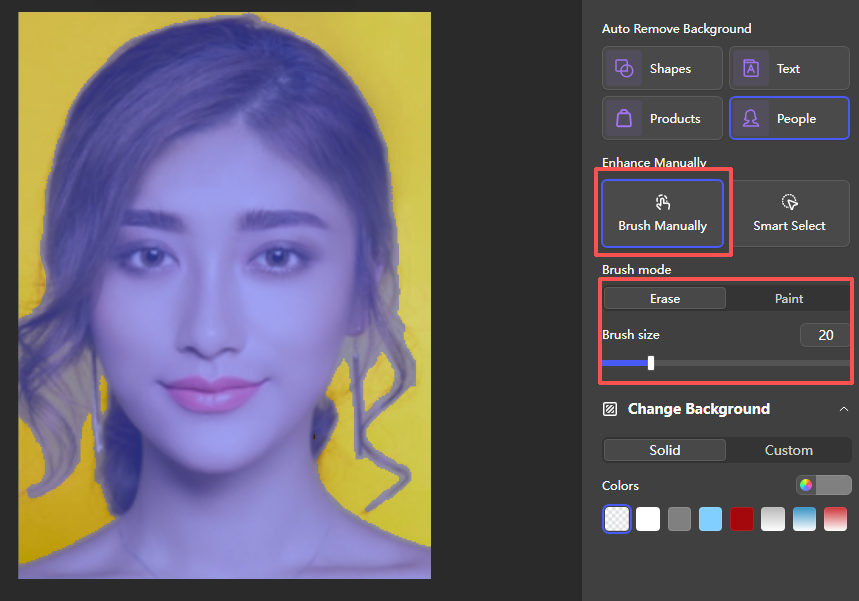
Click Smart Select to let the tool automatically identify and refine remaining background areas.
Step 5: Change the Background
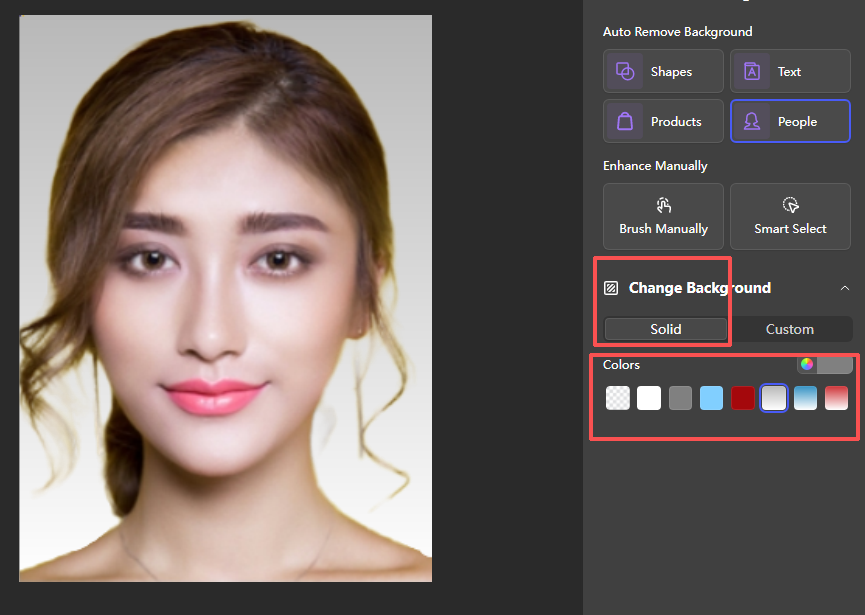
Under "Change Background", use the Solid tab to select a plain color (e.g., white for a passport photo).
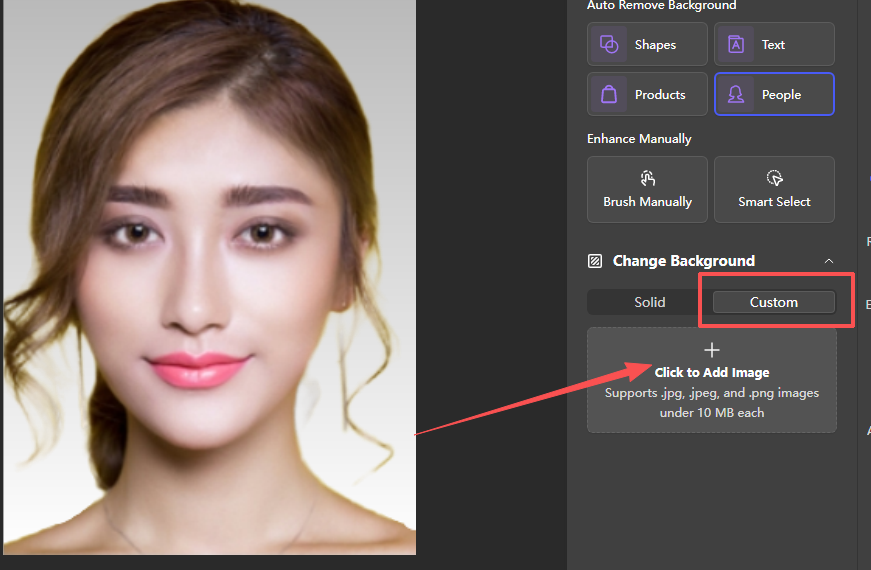
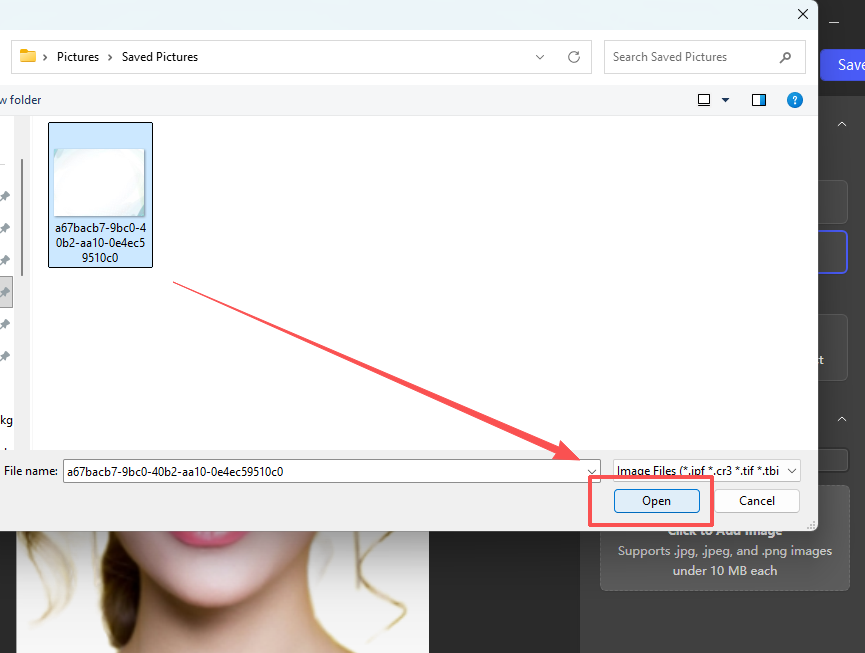
For a custom background, switch to the Custom tab, click Click to Add Image, and select your desired background file, then click "Open".
Step 6: Save the Final Image
Why WPS?



15 years of office industry experience, tech lover and copywriter. Follow me for product reviews, comparisons, and recommendations for new apps and software.


