Free All-in-One Office Suite with PDF Editor

Edit Word, Excel, and PPT for FREE.
Read, edit, and convert PDFs with the powerful PDF toolkit.
Microsoft-like interface, easy to use.
Windows • MacOS • Linux • iOS • Android

Catalog
JPG to PDF: Efficient Image-to-PDF Conversion Using WPS Office
Office users and students often work with screenshots, scanned pages, photos of notes, or exported charts saved as JPG or PNG files. These images are easy to capture, but difficult to submit, archive, or share in a professional way.
The main challenge is structure. Individual images cannot be easily combined, reviewed, or treated as a complete document. Users struggle to merge multiple images into one PDF file, adjust the order, or prepare a clean, formal version suitable for submission or collaboration.
Converting JPG/PNG images into a single PDF is often the most practical way to turn fragmented visual content into a standardized document.
Step 1: Prepare Your Images in a Document
Import the images into a WPS Word document via Insert → Picture to organize them in your preferred order.
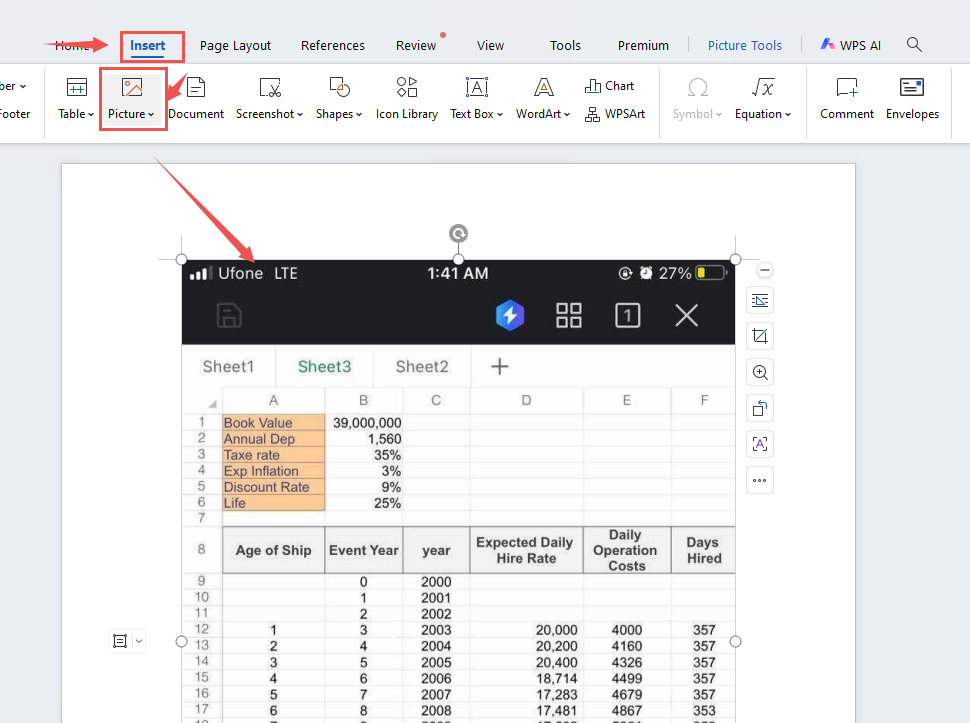
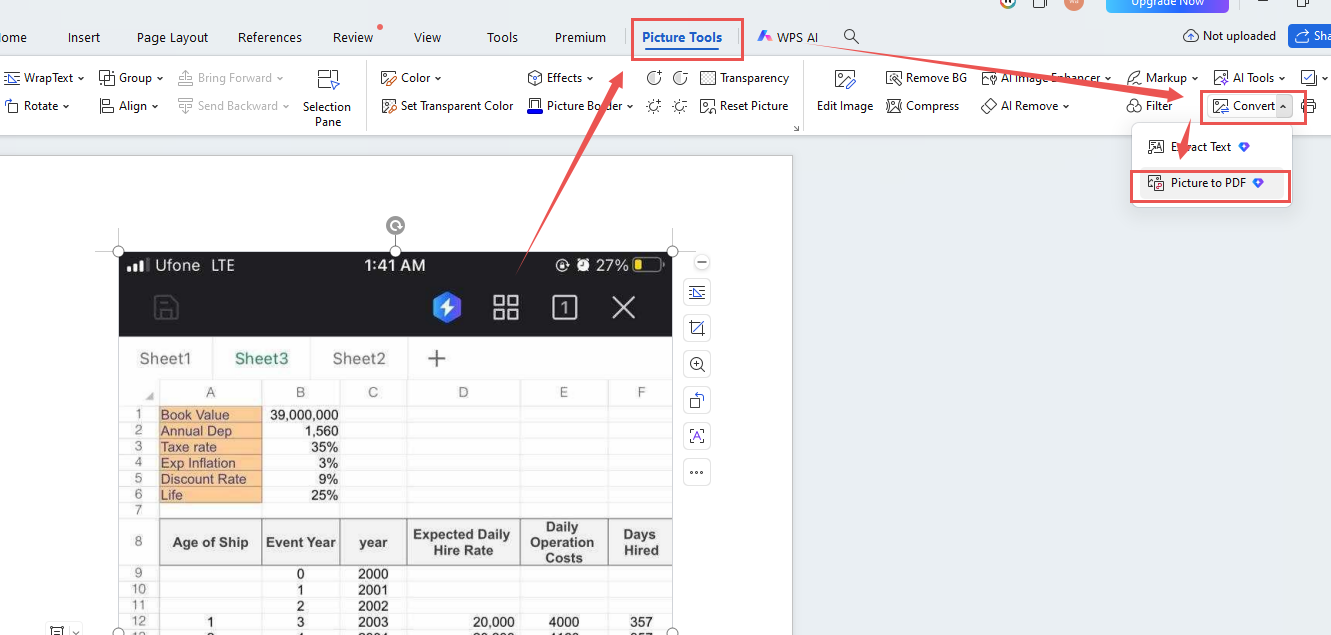
Step 2: Access the Conversion Tool
Go to Picture Tools, then click Convert in the toolbar to open the PDF conversion interface.
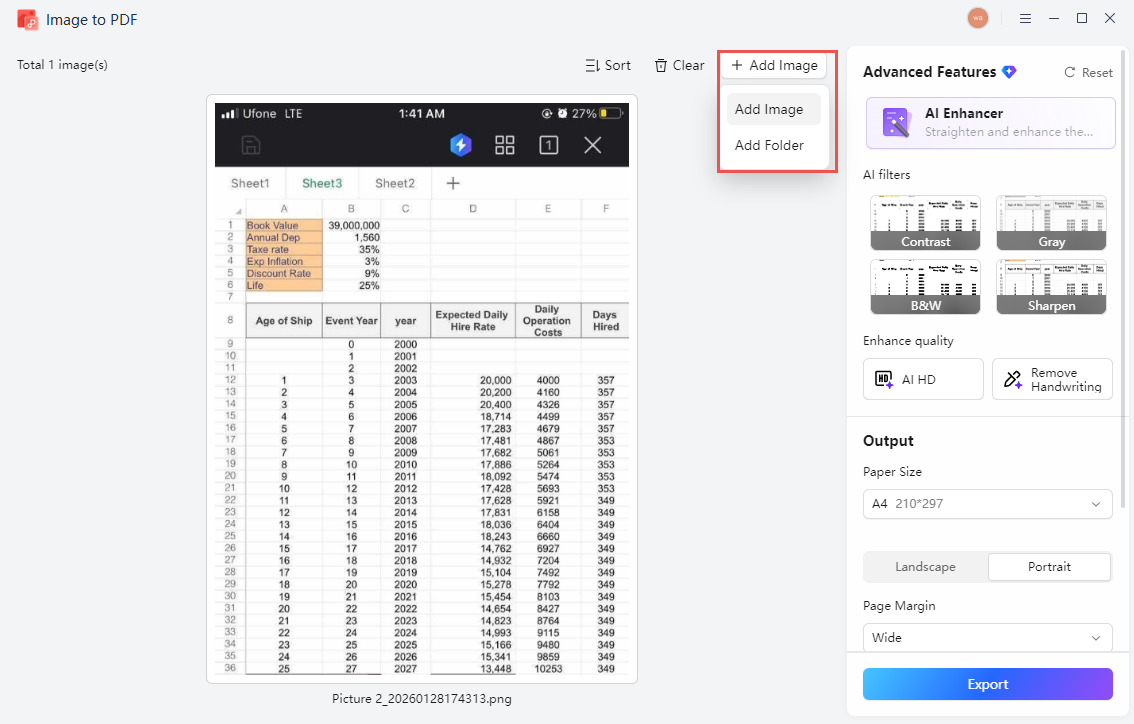
Step 3: Add Additional Images if Needed
Use the Add Image button in the top-right corner to include other images into the same PDF.
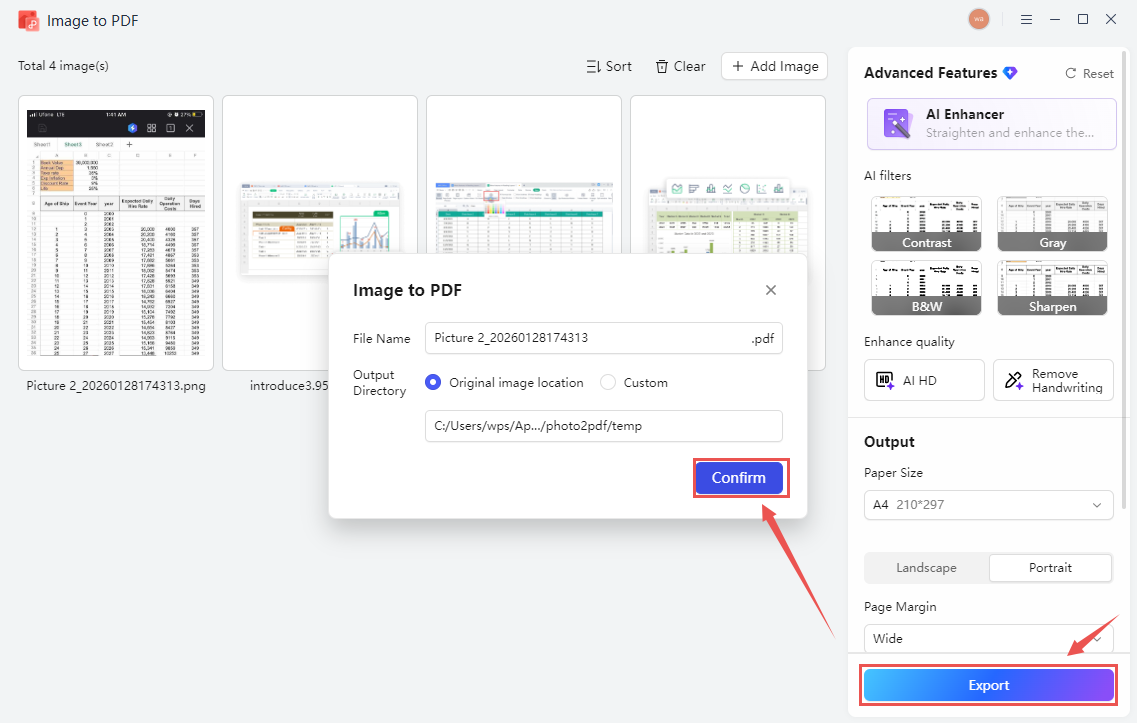
Step 4: Save the Converted PDF
In the sidebar panel, adjust your output settings as needed, click Export, specify the save location, and confirm with Confirm.
Extra Tips
The Free JPEG to PDF Converter Online tool offers a streamlined alternative: simply upload your images directly to the platform, arrange them in your preferred order, and convert them to a PDF in one click.
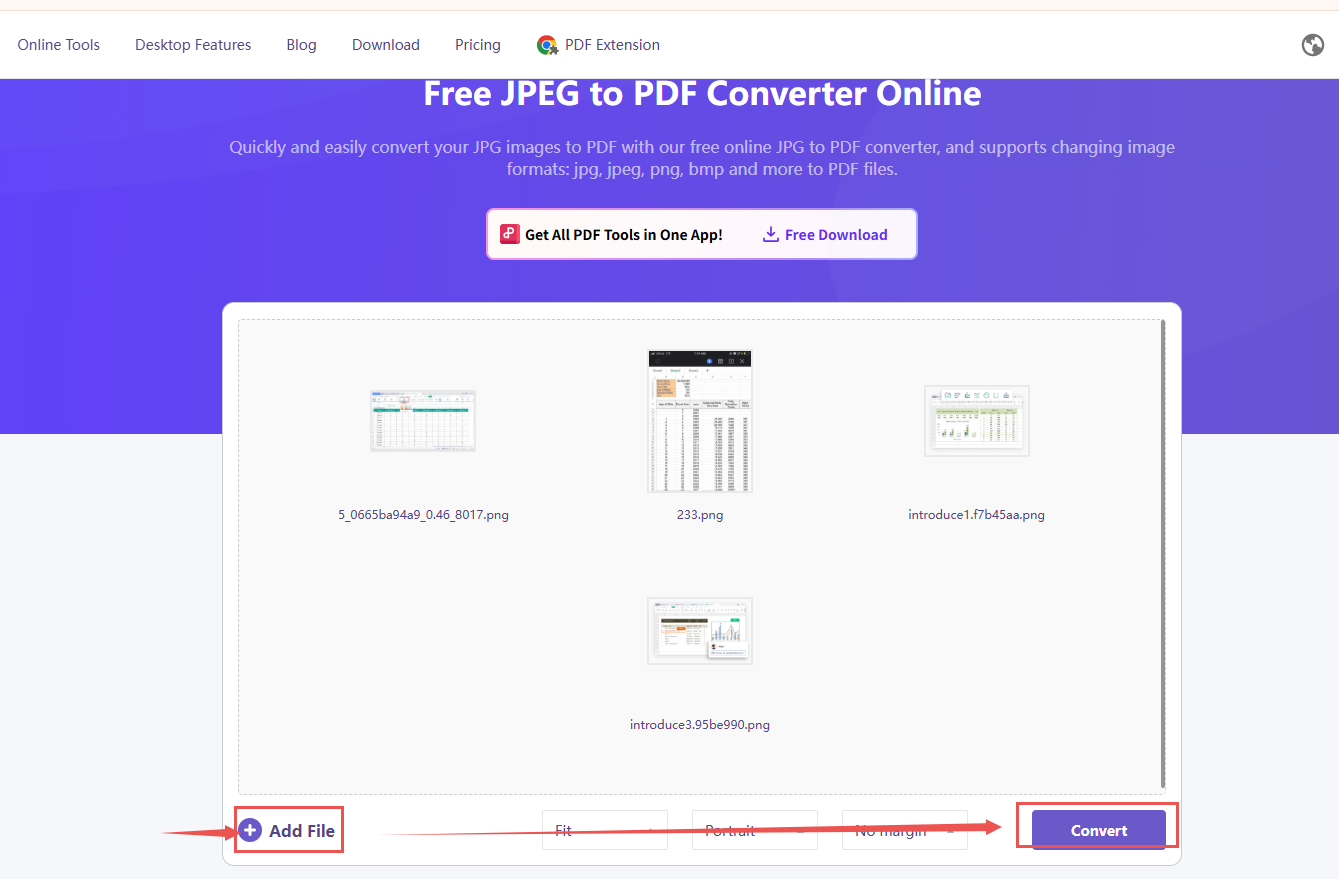
This web-based option is particularly useful when working across multiple devices or when desktop software is unavailable, allowing you to access the converted files from any location with internet connectivity.
Conclusion
Unlike basic online converters that simply output individual images as separate PDF pages, WPS allows in-document editing and arrangement before conversion, enabling users to adjust layout, add pages, and customize the final output—all within the same interface and without requiring external applications or complex file upload procedures.
Also Read:
- 1. How to Extract Text From Image Using WPS AI Document Generator [2026]
- 2. How to Make an Assignment Spreadsheet in WPS Office (Make Your Life More Efficient)
- 3. How to Perform Image Cutout Using WPS
- 4. Remove Shadow from Photo: How to Correct Image Lighting Using WPS Photos
- 5. 10 efficient MCAT study schedule excel templates
- 6. AI Image Extender: How to Expand Image Borders Intelligently with WPS



15 years of office industry experience, tech lover and copywriter. Follow me for product reviews, comparisons, and recommendations for new apps and software.


